AI Assistant (MCP)
The AI Assistant lets an AI client on your computer — Claude Code, or any app that speaks the Model Context Protocol (MCP) — work in the Vertexix session you have open: load a model, remesh it, make a UV map, bake maps, build node materials, export, and look at the result as it goes. You watch it happen in the window, and every change it makes is one you could have made with a click.
The AI Assistant is part of Vertexix Ultra. Other editions show its settings greyed out.
Turning it on
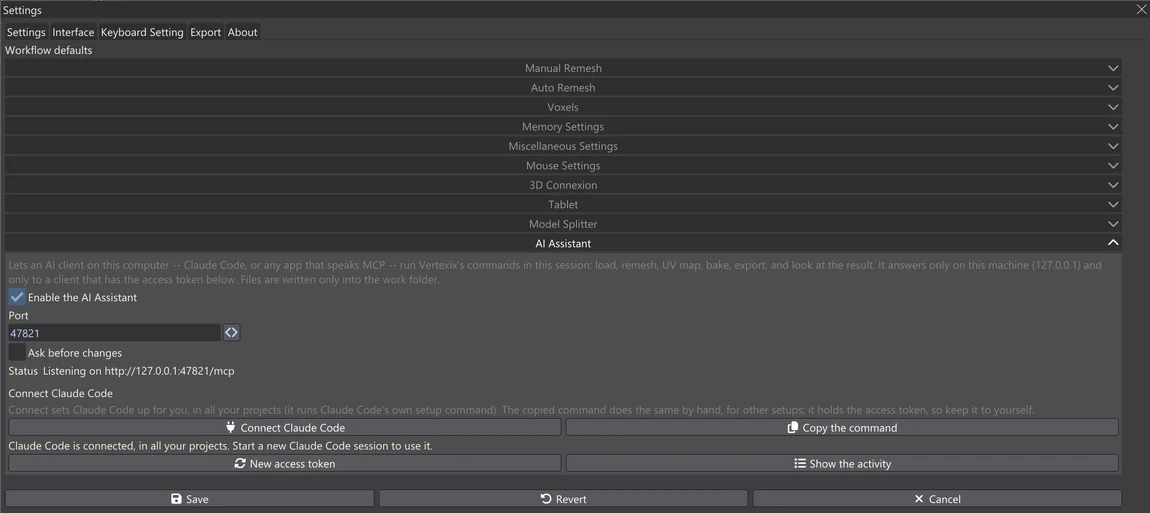
Open Edit > General Settings (Alt+F9), the Settings tab, and the AI Assistant accordion. Tick Enable the AI Assistant and press Save: the status line changes to Listening on http://127.0.0.1:47821/mcp. It starts with every session after that, until you untick it.
| Control | What it does | Default |
|---|---|---|
| Enable the AI Assistant | Starts the MCP server when the settings are saved, and with every session after. | Off |
| Port | The port tried first. When another program holds it, the next free one of the nine above it is used; the status line shows which. | 47821 |
| Ask before changes | Every command that changes the scene or writes a file waits for your answer (below). Looking never asks. | Off |
| Status | Where it is listening, Off, or why it could not start. | |
| Connect Claude Code | Sets Claude Code up to use it, in all your projects, and checks the connection (below). | |
| Copy the command | Puts the command that does the same by hand on the clipboard, for other setups. | |
| New access token | Makes a new access token. Claude Code connected with the button is set up again by itself; any other client must be connected again. | |
| Show the activity | Opens Window > AI Assistant Activity (below). |
Connecting Claude Code
With the AI Assistant on, press Connect Claude Code. Vertexix runs Claude Code's own setup command
for you: it replaces any earlier Vertexix entry in Claude Code's settings, adds this one for all your projects with
the current token, and checks that Claude Code reaches it. The line under the button says how it went —
Claude Code is connected, in all your projects — or what to do (Claude Code not installed, or its
install incomplete). Then start a new Claude Code session: /mcp lists vertexix.
Copy the command gives the same setup as a command to run by hand, for other machines or setups. It looks like this, with your own token:
claude mcp add --scope user --transport http vertexix http://127.0.0.1:47821/mcp --header "Authorization: Bearer <token>"
If Claude Code answers MCP server vertexix already exists, an earlier one is in the way: run
claude mcp remove vertexix -s user first (or use the button, which does it for you).
From then on Claude Code lists Vertexix among its MCP servers whenever the app is running with the AI Assistant on.
Ask it in plain words — “retopologize the open model to about 5000 quads, UV it, bake normal and AO
maps and export a GLB” — and it chooses the commands.
The command holds the access token. The server only answers on this computer, but any program on it that has the token can drive Vertexix. If it has been shared, press New access token.
Clients that start their servers themselves
Some MCP clients only run a server as a program of their own, talking over its input and output. vertexix-mcp.exe, installed beside Vertexix, is that program: it passes every message on to the running app with the token, and when Vertexix is not running it starts it (with the AI Assistant on for that session) and waits for it. In such a client's configuration:
{
  "mcpServers": {
    "vertexix": { "command": "C:\\Users\\you\\AppData\\Local\\Programs\\Vertexix\\vertexix-mcp.exe" }
  }
}
Its options: --port N, --app <path to vertexix.exe>, --no-launch.
What it can do
The AI can only use the commands Vertexix offers it — it never reads the program or your disk on its own. Each command checks what it is given and, when something is wrong, says exactly what (“target 50 is below the minimum 100”), so the AI corrects itself.
| Kind | Commands |
|---|---|
| Look (never changes anything) | Read the scene — with where each material stands (below) — mesh statistics, a screenshot of the 3D view or the whole window, the status, the recent log, the node types, a node graph, a model check of the loaded mesh, search and read this manual, and wait until the app is idle. Look at a texture sends it one map of one material as a picture — a map baked onto the Generated Mesh, or one of the model’s own — with its full size, bit depth and the lowest, average and highest value of each channel. Look at a UV layout sends it the UV map as the Image View draws it: the islands’ edges over a checker, plain grey or one of the material’s maps, optionally outlining one material’s islands only. |
| Model | Open a model, select materials, switch tab, show the Loaded or Generated Mesh. |
| Pipeline | Retopologize (Manual Remesh with a target, adaptivity, anisotropy and materials, or Auto Remesh), Pass Through (materials copied into the Generated Mesh unchanged, with their own UVs and textures), Undo Create Topology, create a UV map, transfer textures, bake a normal, height, ambient occlusion or curvature map. Adjust the bake cage works on the bake cage’s reach: Auto-fix it, probe it, reset it, paint a reach around a point, or show the reach or the probe on the model in the Cage Paint window. |
| Node materials | Create and edit a node material, preview it on the shader ball, and apply it to a material as a Node Layer. |
| Files and undo | Export the model, save the project, Undo and Redo (as Ctrl+Z in the current tab). |
It can also read the user manual, the node catalogue and the sample node materials, and clients that support it offer four ready-made tasks: game-ready asset, diagnose a bake, node texture from a description, and reproduce a bug from its steps.
Material by material
The Generated Mesh is built a piece at a time — some materials retopologized, others passed through — so when the assistant reads the scene it is told where each material stands: not in the Generated Mesh yet, retopologized, passed through, or covered by a Generated Mesh that was made over the whole model at once; whether it has its chart in the UV map; which maps were baked for it; and which textures the model brought with it. It also sees the Generated Mesh’s pieces, each with its materials and face count. That way it can remesh the materials that need it, pass the clean ones (eyes, buttons, a low-poly prop) through, and check a bake by looking at the map rather than trusting that it ran.
Pass Through skips materials that are already in the Generated Mesh. It refuses when every material it was asked for is already there, and when the Generated Mesh was made over the whole model — that mesh already holds every material, so a pass-through would lay a second copy on top. The assistant is then told to undo that topology first and retopologize material by material.
Chat inside Vertexix
Window > AI Assistant Chat is the same assistant without an outside client: you type, a model of your choosing answers, and it uses the same commands — with the same checks, the same work folder, the same Ask before changes and the same activity list. Each command it runs shows as a line under its reply (hover it for what was sent and what came back), and a tag at the top of the 3D view names it while it runs.
The reply appears as the model writes it (unless Show the reply as it is written, below, is turned off). A model that thinks first shows its thinking as it comes, in a section headed Thinking... 10 s that counts up; once it starts to answer, the section folds to Thought for 13 s, and a click opens it again (where the provider only gives a summary of its thinking, that is what you see). The conversation follows the reply down unless you have scrolled up to read. The status line under it says what is happening — Waiting for qwen3.8..., qwen3.8 is thinking..., qwen3.8 is writing..., or the command it is running — with a clock for that step and, when the message as a whole has taken longer, its time too (12 s in all). A slow local model is easy to tell from a stuck one.
- Send (or Ctrl+Enter) sends the message; Stop ends the reply being written and asks the command it is running to stop, as that command's own Cancel would.
- Attach image... sends a picture with the next message — a photo of a surface, say, to make a node material from. It is shrunk to 1568 pixels on its longer side first. Pictures waiting to go show as thumbnails above the text box, each with an × in its corner: click one to leave it out. Once sent, they show in a row above the words of your message. Hover a thumbnail for its file name and the whole picture.
- Activity opens the list of every command the assistant ran (below).
- New chat forgets the conversation; what the assistant changed stays changed.
- How-to questions are answered from this manual: the assistant searches it and names the page it read.
- Right-click a line to copy it.
Which model it talks to is set in the Chat part of the AI Assistant accordion, below the server's controls:
| Control | What it does |
|---|---|
| Provider | Claude (Anthropic), OpenAI-compatible — a model server on this computer such as LM Studio or Ollama, or OpenAI's own service — or Gemini (Google). |
| Address | Where the provider answers. Empty uses its usual address; for OpenAI-compatible the LM Studio, Ollama and OpenAI buttons fill it in. |
| Model | The model's name. Empty uses claude-opus-5-5 for Claude and the loaded model for a local server. List models asks the provider which it has (and so tests the address and key) and offers them in a list. |
| Card for the local model | For a server on this computer: which NVIDIA graphics card it may use (below). |
| API key | Save the key keeps it encrypted for your Windows account on this computer — never in settings.cfg, never shown again; Forget the key removes it. Without a saved key the usual environment variable is used: ANTHROPIC_API_KEY, OPENAI_API_KEY (only for an https address) or GEMINI_API_KEY. A local server needs none. |
| Effort | Claude only: how hard it thinks before answering. Higher is slower and costs more, and does better on long jobs of many steps. |
| Send images to the model | Screenshots and attached pictures go to the model. Turn it off for a local model that reads text only. |
| Show the reply as it is written | On by default: the model’s thinking and its words appear while it writes them, instead of all at once when it is done. Turn it off only for a server that does not stream. Showing the thinking costs nothing extra. |
Changing the provider or the model starts a new conversation at your next message. With a cloud provider you pay that provider for what the chat uses; the status line under the conversation counts the tokens.
Choosing the card for a local model
A large local model fills a graphics card's memory. On the card that also draws your screen and Vertexix, that can run the card out of memory, and Windows then resets it — the screen goes black for a while. With two cards, give the model the other one.
Card for the local model lists your NVIDIA cards (the one marked draws the screen is the
one to avoid), CPU only, and Let the server decide. A server takes its cards when
it starts, so the choice counts once the server is started again from here:
Restart Ollama on this card (address port 11434) or Restart LM Studio on this card
(port 1234) closes it — its tray icon or window too — and starts its server again seeing only that card.
Both servers can also find the cards through Vulkan, which CUDA_VISIBLE_DEVICES does not hide, so the
restart sets GGML_VK_VISIBLE_DEVICES=-1 as well: without it a model could still land on the card that
draws the screen. The restarted server keeps running after Vertexix closes. Refresh then shows
which card each model server is on; a model is loaded with its first message, so look after one. Another kind of server must be started by hand with
CUDA_VISIBLE_DEVICES set to the card's id.
How it is kept safe
- Only this computer. The server listens on 127.0.0.1; nothing on the network can reach it.
- Only with the token. A request without the access token is refused.
- Not from web pages. A request a web page in your browser sends is refused, whatever it carries.
- Files only in the work folder. Exports and projects can only be written into the AI work
folder (
%APPDATA%\Vertexix\ai_work; the AI is told where), never anywhere else, and never over the model you opened. - One change at a time. While a remesh or bake runs, another change is refused as busy; two heavy GPU jobs never run together.
- Undo. A remesh is taken back with Undo Create Topology, and a paint or sculpt stroke with the same Ctrl+Z as your own. A new UV map, bake or node material is not an undo step: it replaces the one before, and the assistant is told to say so before it replaces something you made.
Ask before changes
With Ask before changes on, each command that would change something waits, and a box in the middle of the 3D view says what the AI asks to run and with what. Allow runs it; Allow all this session stops asking until Vertexix is closed or the AI Assistant turned off; Deny refuses it, and the AI is told you declined. Reading the scene, statistics and screenshots, and looking at textures and UV layouts, never asks.
Seeing what it did
While an AI command runs, a tag at the top of the 3D view names it (AI: Retopologize 40%).
Window > AI Assistant Activity lists every command it ran, newest first: when, what, the result
(failures in red), and how long it took. The same list is written, while the server runs, to
%LOCALAPPDATA%\Vertexix\logs\mcp_<date>.log.
Running commands without an AI
The same commands run from the command line, one after another, with the app closing when they are done — a saved list is a recipe you can run on any model:
vertexix.exe model.glb --run "retopologize target=3000; create_uv_map; bake_maps kind=normal; export_model path=model_lowpoly.glb"
--run-file recipe.txt reads them from a file (one command per line, # for comments),
--list-commands commands.txt lists every command with its options, --run-stay keeps the
window open afterwards. The exit code says how it went:
| Exit code | Meaning |
|---|---|
| 0 | Every command succeeded. |
| 2 | The script or an option is wrong (an unknown command, a value out of range). |
| 3 | The model could not be loaded. |
| 4 | A command failed. |
| 5 | It ran past --run-timeout (30 minutes unless set). |
| 6 | Refused: not in this edition, or a file outside the work folder. |
A script has nobody to show a picture to, so the pictures its commands return — a screenshot of the view, a
texture, a UV layout — are saved as files instead, in %LOCALAPPDATA%\Vertexix\run_images:
step3_0.png is the first picture of the script’s third command, and the log (with
--create-log) names each one. This one, for example, saves the new UV layout as step3_0.png and the 3D view after the bake as
step5_0.png:
vertexix.exe model.glb --run "retopologize target=3000; create_uv_map; get_uv_layout mesh=generated; bake_maps kind=normal; screenshot_viewport"
Unlike the AI Assistant, --run is not limited to Ultra: it works in every edition, and each command
keeps to that edition’s limits (a bake’s largest size, for one).
Troubleshooting
| Problem | What to do |
|---|---|
| The status line says the ports are all in use. | Another program holds 47821 and the nine after it: set another Port and connect the client again with the copied command. |
| The client says it is unauthorized. | The token changed (New access token): press Connect Claude Code again, or remove and re-add the server in the client. |
| Claude Code says MCP server vertexix already exists. | Press Connect Claude Code, which replaces the old entry; or run claude mcp remove vertexix -s user before adding it by hand. |
Windows says Unsupported 16-Bit Application for claude.exe. | Claude Code's npm install did not finish fetching its program. Install it again (npm install -g @anthropic-ai/claude-code, without --ignore-scripts), then run the copied command. |
| A command says busy. | Another change is running, or a dialog is open in Vertexix. Let it finish (or close the dialog) and ask again. |
| The chat says No answer from http://127.0.0.1:.... | The local server is not running: start LM Studio's server (Developer > Start Server) or Ollama, or press Restart ... on this card. |
| The chat says HTTP 401. | The API key is wrong or missing: save it again under API key. |
| A local model answers but never uses the commands. | Not every model can call tools. Pick one made for it (most recent Qwen, Llama, Mistral and Gemma models are). |
| The screen went black while a local model ran. | The card ran out of memory. Give the model the other card, or a smaller model (above). |